Adding custom PCF control to Dynamics 365 CE form
PCF Gallery (https://pcf.gallery/) has a great list of PCF controls available to use - both free and payable controls.
Once you have imported the solution to your Dynamics 365 environment, you have to add the control to your form before you can use it on individual fields.
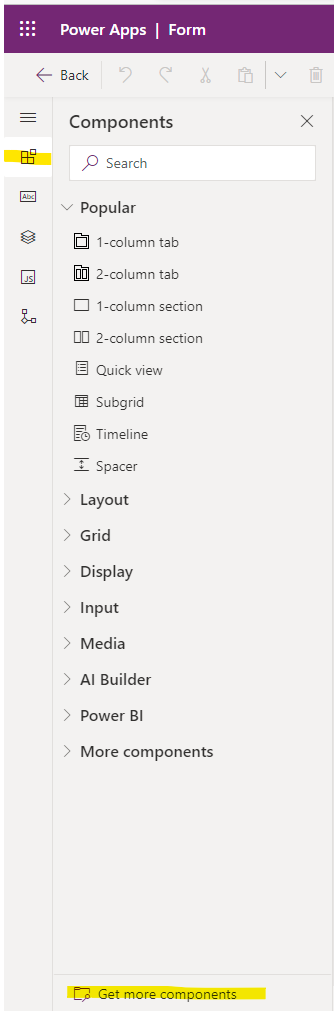
Open the form you would like to edit, click on the Components tab on the left. Then, down at the bottom, click on Get more components.
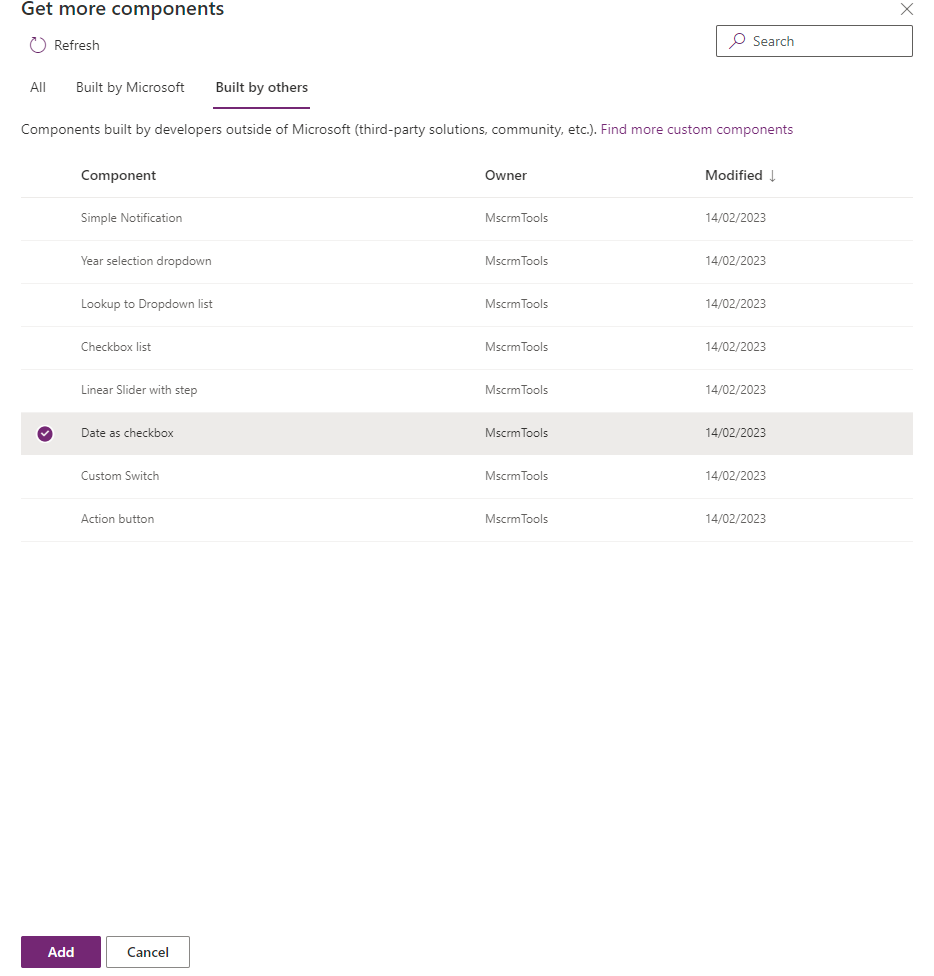
A new window will appear, then select Built by Others tab, and select the control you would like to use.
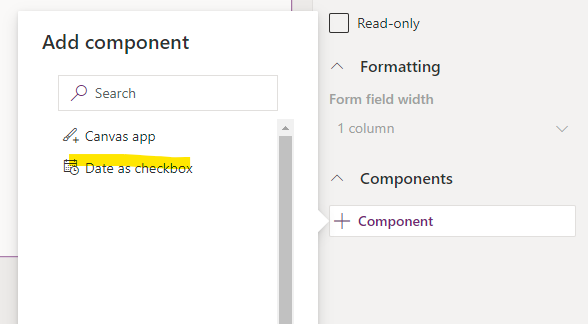
Select the field you want to try the new control on, then click on the +Component at the bottom right. The newly added control will appear for selection.
Please note that most controls work only for the specified field type. In this blog example, the Date as checkbox control works for Date/Time fields only.
Thats it for now.